I. Purpose & Scope
To provide a detailed work instruction on the process of adding asset tag information to 3rd party system Milwaukee One Key app.
II. Definitions
N/A
III. Process
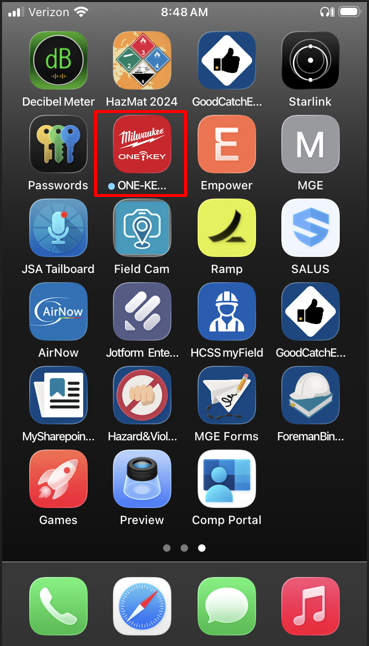
- Navigate to the Milwaukee One Key app and log in.
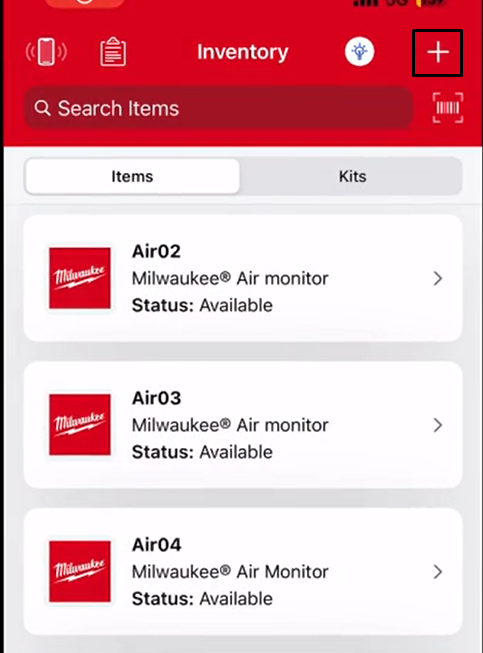
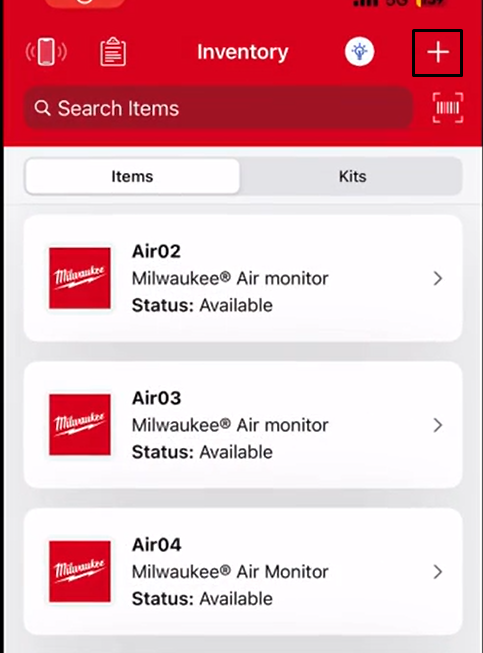
- Select the + icon at the top right of the screen.
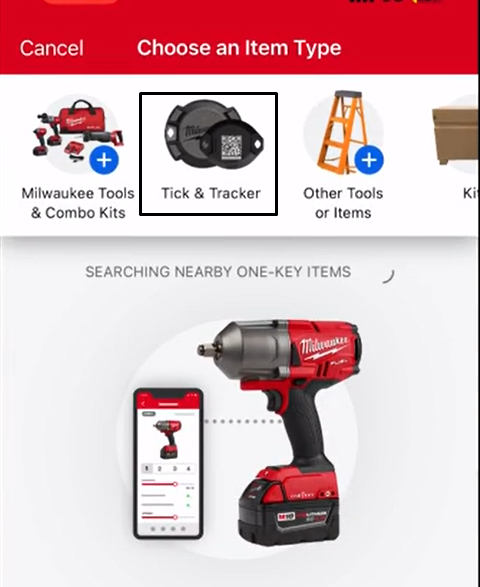
- Select Tick & Tracker.
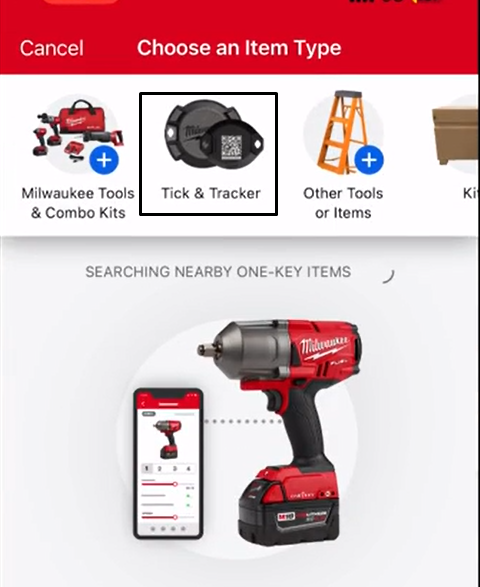
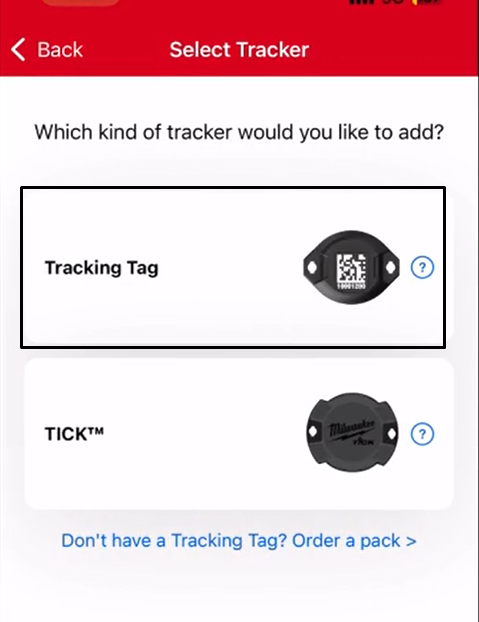
- Select Tracking Tag.
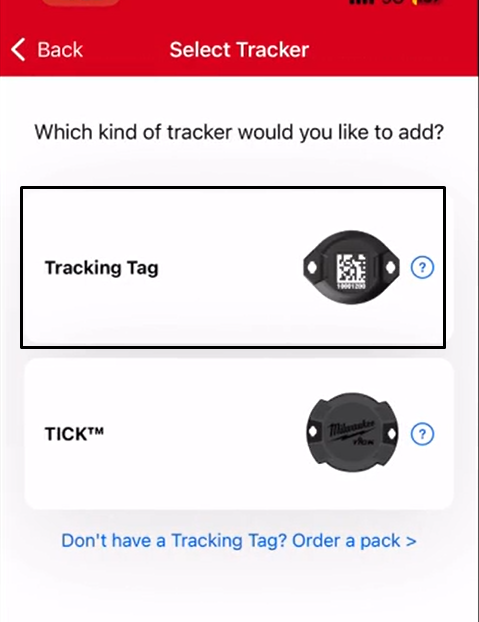
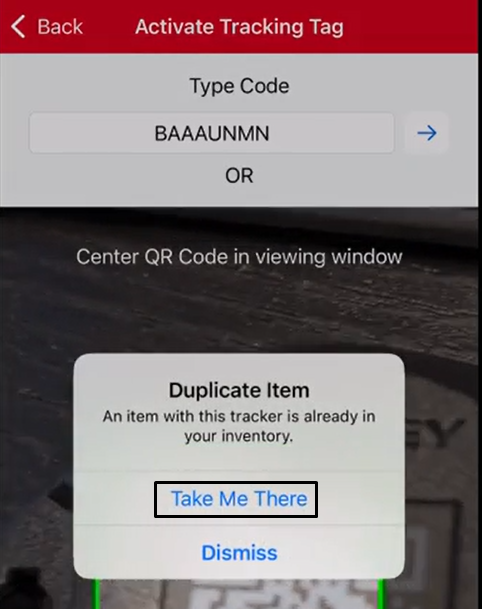
- Scan the applicable QR code on the tracking tag.
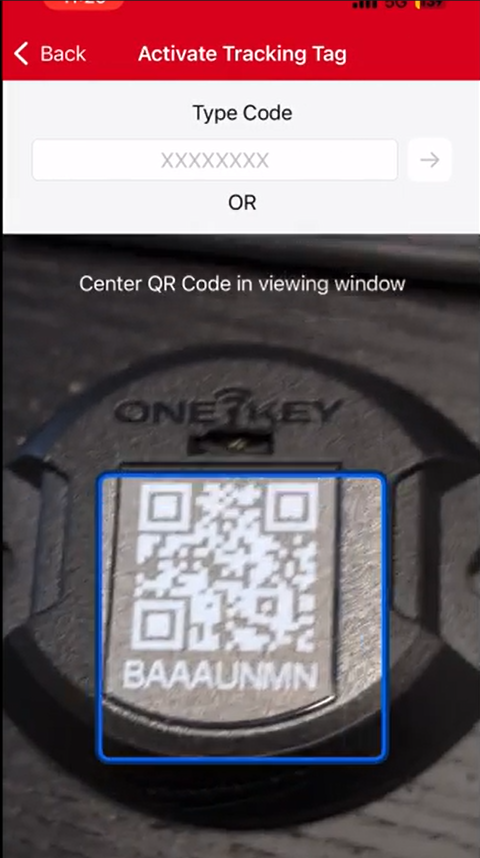
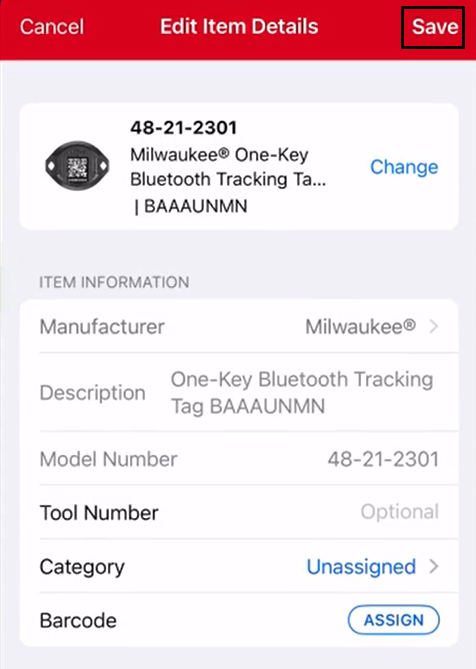
- Select Save.
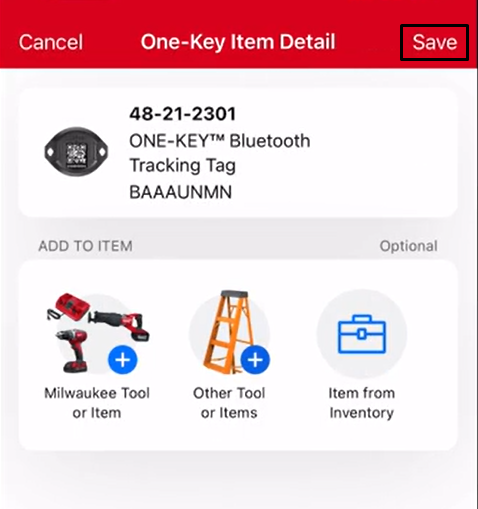
- Select the + icon at the top right of the screen.
- Select Tick & Tracker.
- Select Tracking Tag.
- Scan the same QR code on the tracking tag.

- Select Take Me There.
- Scroll down and select Division.
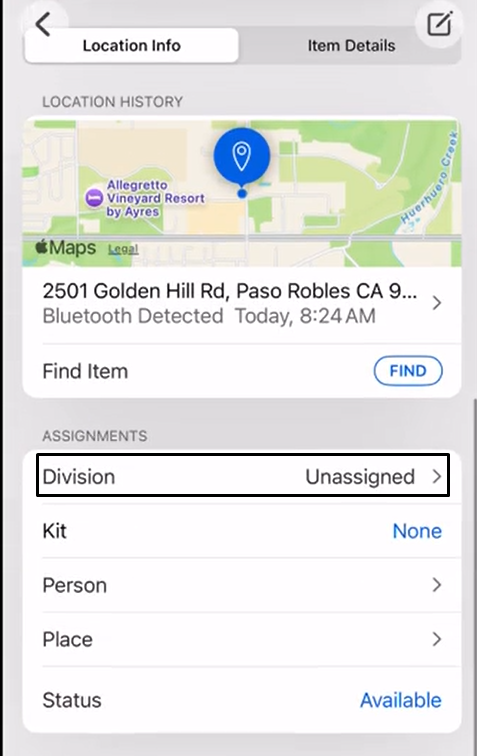
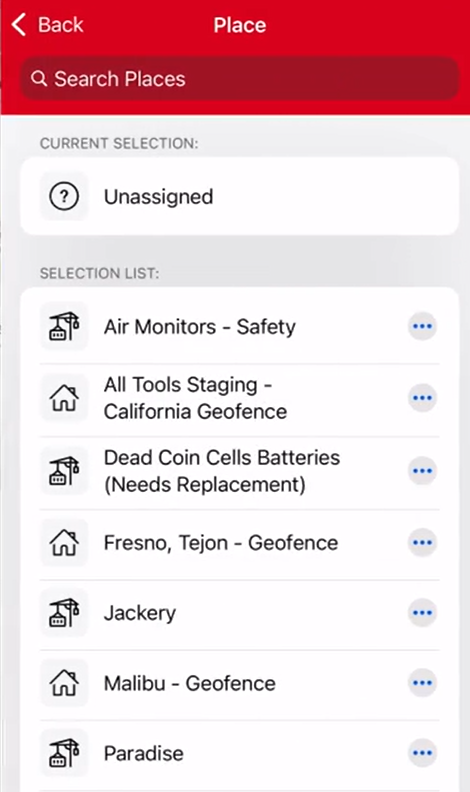
- Select the appropriate category for the item you are tagging.
Example: RKI Air Monitor – select Air Monitors Safety.
- Scroll back to the top and select the asset tag description.
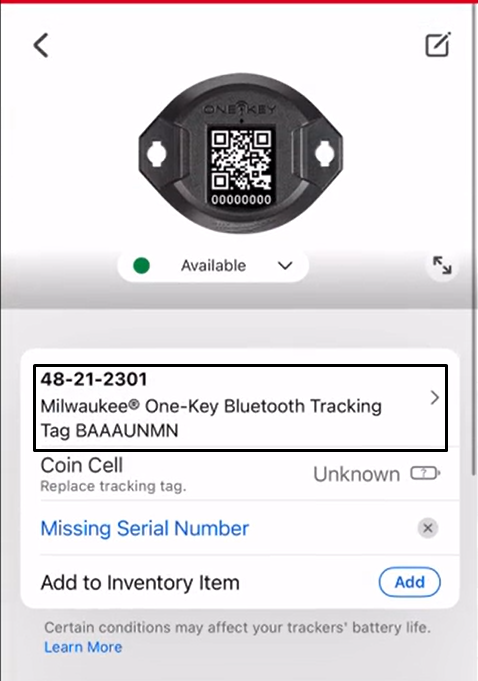
- Select Save.